

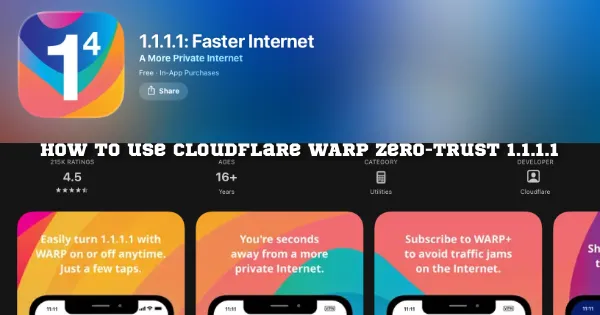
What is WARP, Zero-Trust
WARP is a new form of Wireguard
Zero-Trust is the best version of WARP
How to deploy WARP
Follow this guide, pretty simple.
Difference between WARP, WARP+, Zero Trust
WARP : 1G
WARP+: Medium plan
Zero Trust: Business plan
Download WARP client APP
the official download site of WARP: https://one.one.one.one
Server-side Zero-Trust Sign-up
For example, on Linux, download the server-side application from the following URL.
https://pkg.cloudflareclient.com
For instructions on deploying a WireGuard service on Oracle Cloud (OCI), please refer to Oracle Cloud WireGuard Setup Complete Guide

Next, run the following command.
warp-cli registration new orbitmoonalphaWARNING1: $ warp-cli teams-enroll error: unrecognized subcommand ‘teams-enroll’
WARNING2: Teams registration run as root is not supported.
Please re-run command as a regular user.
Note: Do not use the root account when submitting the organization registration. Exit the root account with the following command:
exitNOTICE:
Your organization is using Cloudflare for Teams, a security platform that makes
connections to the Internet and applications faster and safer.
What information is available to administrators of my organization?
The following information may be viewed by administrators from your
organization:
* the websites you visit
* the times you visited them
More information is available at:
– https://www.cloudflare.com/application/terms/
– https://www.cloudflare.com/application/privacypolicy/
Accept Terms of Service and Privacy Policy? [y/N] y
A browser window should open at the following URL:
https://orbitmoonalpha.cloudflareaccess.com/warp
If the browser fails to open, please visit the URL above directly in your browser.
Then, after the page loads and you submit the email verification code, extract the JWT from the blue button.

Note that only the complete string inside the single quotes is the JWT.
Then submit the WARP API verification in the following format:
warp-cli registration token + com.cloudflare.warp://[Organisation].cloudflareaccess.com/auth?token= + [token]warp-cli registration token com.cloudflare.warp://orbitmoonalpha.cloudflareaccess.com/auth?token=eyJhbGciOiJSUzI1NiIsImtpZCI6IjhkOWIwOTgyNTY3MDYyMWM0N2E3OWQ3MWU2OTFkMTY2MmE2ZTg5ZGUxMmI3YTliZGVlMDczOGE2YWIxNDMxMTMifQ.eyJhdWQiOlsiZTExM2Q4MmU1YzJlMTExZGY5YWY5ZWNlNGZmMTdiNTk5ZjJlYTZkY2U3M2Q3NzU1MDczMmE1MTRlNDRkMDgwOCJdLCJlbWFpbCI6ImhComplete the Team (now called Zero Trust) registration.
Common commands:
warp-cli accountAccount type: Team
Device ID:
Public key:
Account ID:
Organization: orbitmoonalpha
warp-cli tunnel ip add [ Excluded IP]Make sure to configure the excluded IPs correctly to keep the SSH connection to the origin server working and avoid losing access to the server.
If this is misconfigured, running warp-cli connect may cause you to permanently lose access to the origin server.
Where is the Zero Trust private key (WARP server private key) stored?
/var/lib/cloudflare-warp# cat reg.jsonreg.json shows:
{“registration_id”:[“”,null],”api_token”:””,”secret_key”:””,”public_key”:””,”override_codes”:{“disable_for_time”:{“seconds”:86400,”secret”:””}}}root@WG-US:/var/lib/cloudflare-warp#
Since WARP is built on top of WireGuard, the public and private keys in this JSON file are used for WireGuard pairing.
MASQUE : Cloudflare WARP New Tunnel Protocol

MASQUE(Multiplexed Application Substrate over QUIC Encryption )is an innovative protocol that extends the capabilities of HTTP/3 and leverages the unique properties of the QUIC transport protocol to efficiently proxy IP and UDP traffic without compromising performance or privacy. With the growing demand for zero trust architecture, the features and solutions offered by MASQUE have become increasingly important. Users desire their network traffic to appear as HTTPS to avoid detection and blocking by firewalls, and many also require FIPS-compliant encryption. The effectiveness of MASQUE technology has been validated in other areas, leading to its integration into zero trust architectures, enabling it to deliver services at exceptional speeds. This application of the technology promises to provide users with a more secure and efficient network experience.
How to use MASQUE WARP
You can currently switch the tunnel protocol from both the server and the app.
Troubleshoot
warp-cli registration new gets stuck (unable to submit / previous registration incomplete), and warp-cli registration delete does not work.
A: reinstall warp-cli
sudo apt-get remove cloudflare-warpWarp-cli register shows Error: Failed to contact the WARP API when registering Zero Trust.
A: If you get an error when submitting the server verification API, go back to the WARP token page in your browser. The JWT there will be refreshed automatically. After obtaining the new JWT, submit it again and the registration should succeed.

Is it possible to establish a Zero Trust WARP connection on the server and then connect to it from a local WireGuard client?
In practice, this is indeed possible. The main idea is that after running warp-cli connect, you route all traffic from the CloudflareWARP interface (shown in ifconfig) through WireGuard. Once the local WireGuard client connects, the IP it obtains will be the Cloudflare WARP IP.
How do I configure preferred IPs on the server?
Force the client to connect to the specified IP:PORT endpoint (Zero Trust customers must run this command as a privileged user)
warp-cli tunnel endpoint set + IP:Portipv4 tunnel endpoint:

ipv6的tunnel endpoint:
warp-cli tunnel endpoint set “[2606:4700:d1:0:c654:d69d:4c77:4cf0]:943”
Please make sure the server has an external IPv6 address before enabling this. Otherwise, you must at least confirm that you can remotely reset the tunnel endpoint via the console CLI using the following command; if not, you may lose access to the server.
Reset endopoint:
warp-cli tunnel endpoint resetHow can I restore access to the server after warp-cli connect causes it to become unreachable?
Go to the Cloudflare Zero Trust dashboard, then under WARP Clients, open the Device settings profile you are currently using, for example:

Switch the WARP Mode to Proxy. After waiting a short while for the API changes to propagate, you should be able to reconnect to the server. Then run warp-cli disconnect.
Unable to Connect HAPPY EYEBALLS MITM FAILURE – Cloudflare Cannot Connect

Status: Unable to Connect
Error reason: Happy Eyeballs Failure
Error code: CF_HAPPY_EYEBALLS_MITM_FAILURE
Error description: Unable to establish WARP connection. Confirm if this device’s firewall allows WARP Ingress and/or UDP traffic.
What is HAPPY EYEBALLS ?
Happy Eyeballs can be simply understood as a mechanism that lets your computer or phone try both IPv4 and IPv6 at the same time when accessing the Internet, then selects whichever path is faster and more reliable.
Recently, users in mainland China have experienced connectivity issues affecting WARP, WARP+, and Zero Trust. These problems appear to be primarily caused by firewall-related factors.
Zero-Trust Turns ON MASQUE
3 Steps to Enable the Cloudflare MASQUE protocol in Zero-Trust:
Step1:Cloudflare Zero-Trust Console — Settings — WARP settings — Profile setting — Default
Step2:Enable “Device tunnel protocol” MASQUE , and SAVE profile

Step3: Back to WARP Client — Global settings — Enable “Override local interface IP“

MacOS :
There is no need to run any commands in the terminal to switch protocol modes.

After connecting via MASQUE, the ISP information is shown as: AS13335 Cloudflare, Inc.
Use our IP Checker:
https://orbitmoonalpha.com/ip/
warp-cli tunnel -h
Configure tunnel settings

Usage: warp-cli tunnel <COMMAND>

Commands:
  dump         Get split tunnel routing dump. For include-only mode, this shows routes NOT included
  host         Configure split tunnel hosts
  ip           Configure split tunnel IP ranges
  stats        Retrieve the stats for the current tunnel connection
  rotate-keys  Generate a new key-pair, keeping the current registration
  endpoint     Force the client to connect to the specified IP:PORT endpoint (Zero Trust customers must run this command as a privileged user)
  help         Print this message or the help of the given subcommand(s)
Linux:
warp-cli mdm -h
MDM configs

Usage: warp-cli mdm <COMMAND>

Commands:
  get-configs  Show information about current MDM configurations
  set-config   Apply config from configs found in MDM file
  help         Print this message or the help of the given subcommand(s)
How to verify WARP tunnel protocol is using MASQUE
warp-cli settings listWARP tunnel protocol: MASQUE
warp-cli settings list
Merged configuration:
(derived)	Always On: true
(network policy)	Switch Locked: false
(network policy)	Mode: WarpWithDnsOverHttps
(network policy)	WARP tunnel protocol: MASQUE
(network policy)	Disabled for Wifi: false
(network policy)	Disabled for Ethernet: false
(user set)	qlog logging: Enabled
(default)	Onboarding: true
(network policy)	Exclude mode, with hosts/ips:
(Not set)	Daemon Teams Auth: false
(network policy)	Disable Auto Fallback: false
(network policy)	Captive Portal: 0
(network policy)	Support URL:
(network policy)	Organization: orbitmoonalpha
(network policy)	Allow Mode Switch: true
(network policy)	Allow Updates: false
(network policy)	Allowed to Leave Org: false
(network policy)	Profile ID: default
How to use the WARP client with macOS Sequoia
Because Apple has updated the “Block All Incoming Connections” setting in macOS Sequoia relative to previous macOS versions, Cloudflare recommends the use of macOS 15.1 or later. With macOS 15.1, Apple addressed several issues that may have caused the WARP client to not behave as expected when used with macOS 15.0.x.
Apple provided guidance that the “Block All Incoming Connections” setting within the macOS firewall in System Settings must be disabled when using the WARP client on macOS Sequoia. In addition, the following must have the “Allow incoming connections” setting explicitly enabled (note: one has a space, one does not):
“CloudflareWARP” at /Applications/CloudflareWARP.app/Contents/Resources/CloudflareWARP
“Cloudflare WARP” with bundle ID com.cloudflare.1dot1dot1dot1dot1.macos