
Table of Contents
Why Add the AI-Agent to Your Home Screen?
The AI-Agent at
https://orbitmoonalpha.com/ai-agent/
is a web app, which means it runs inside your browser but can behave almost like a native app when saved to your home screen.

Adding it to your home screen lets you:
- Open the AI-Agent with a single tap
- Avoid typing the URL or searching for it in tabs and history
- Get a more app-like experience, often in a standalone window
- Integrate the AI-Agent smoothly into your daily mobile workflow
This guide is focused on mobile devices, and covers:
- Android phones/tablets using Chrome
- iOS devices (iPhone/iPad) using Safari
Step 1: Open the AI-Agent in Your Mobile Browser
Before you can add the AI-Agent to your home screen, you need to open it in your browser.
- On your phone or tablet, unlock your device.
- Open your mobile browser:
- On Android, this is typically Chrome.
- On iOS, this is usually Safari (recommended for the best “Add to Home Screen” support).
- Tap the address bar at the top.
- Enter the URL:
https://orbitmoonalpha.com/ai-agent/ - Tap Go or the enter key.
- Wait for the AI-Agent web app page to fully load. You should now see the AI-Agent interface on your screen.
You only need to do this once; after the icon is on your home screen, you will launch it from there instead.

Join Our Telegram Group:
https://t.me/+IuIEVyJ2STQ3ZDAx
Step 2: Add the AI-Agent to Your Home Screen
In this single step, you will turn the open AI-Agent page into a home screen icon.
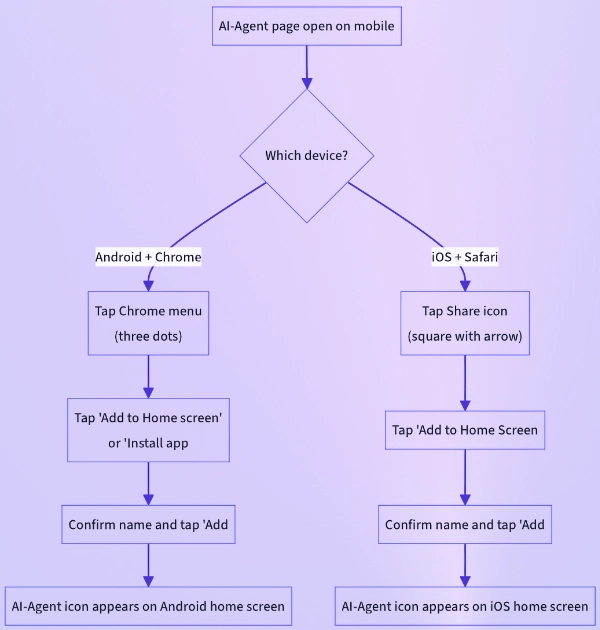
The exact actions differ slightly between Android (Chrome) and iOS (Safari), so follow the instructions for your device type.
2.1 On Android (Chrome)
If you’re using an Android phone or tablet with Chrome, follow these instructions:
2.1.1 Open the Chrome menu
- Make sure the AI-Agent page is already open in Chrome.
- Look at the top-right corner of the browser.
- Tap the menu icon (three vertical dots).
This opens a dropdown menu with several options related to the current page and browser settings.
2.1.2 Choose “Add to Home screen” or “Install app”
In the menu:
- Scroll if needed and look for one of the following options:
- “Add to Home screen”
- “Install app”
- Tap the option you see.
- When Chrome detects that the site supports Progressive Web App features, it may show “Install app”.
- On other setups, it may show “Add to Home screen” directly.
Both options serve the same purpose here: creating an icon on your home screen that launches the AI-Agent.
2.1.3 Confirm the shortcut name and add it
A small dialog will now appear:
- You’ll see a name field for the shortcut.
- It might default to something like “AI-Agent” or the site title.
- You can keep this name or change it, for example to “OMA.AI-Agent” or a shorter label you prefer.
- Tap “Add” to confirm.
Depending on your Android version and launcher:
- You might be asked to drag the icon to a specific spot on your home screen.
- Or the system will automatically place the icon on your home screen for you.
After this, check your home screen: you should see a new AI-Agent icon, similar to any other app icon.
2.2 On iOS (Safari)
If you’re on an iPhone or iPad, adding the AI-Agent to your home screen is done through Safari.
2.2.1 Open the Share menu
- Confirm that the AI-Agent page is open in Safari (not inside another app’s mini-browser).
- At the bottom of the screen, find the Share icon:
- It looks like a square with an upward-pointing arrow.
- Tap the Share icon to open the iOS Share sheet.
This panel shows actions you can take with the current page.
2.2.2 Tap “Add to Home Screen”
Inside the Share sheet:
- Scroll down or across the list of actions.
- Find and tap “Add to Home Screen”.
If you don’t see it:
- Scroll the list further; it may be slightly hidden below the fold.
- If necessary, tap “Edit Actions…” and enable “Add to Home Screen” so it appears in your main list next time.
2.2.3 Set the name and add the icon
After tapping “Add to Home Screen”:
- You’ll see a preview of the icon and a name field.
- By default, this might show “AI-Agent” or the site’s title.
- You can rename it to anything you like, such as “AI-Agent”, “OMA AI”, or another short label.
- Tap “Add” in the top-right corner.
iOS will create a new icon on your home screen. When you tap this icon:
- The AI-Agent opens in a more app-like, standalone window, without the full Safari interface.
- You no longer need to open Safari first or type the URL.
Step 3: Place the AI-Agent Icon Where It’s Most Convenient
Once the icon is on your home screen, you can move it to the most comfortable and accessible spot.
3.1 Locate the AI-Agent icon
- Go to your device’s home screen.
- Swipe left or right through your pages until you see the AI-Agent icon that was just created.
3.2 Move the icon for quick access
On both Android and iOS:
- Tap and hold the AI-Agent icon until the icons enter edit mode:
- On iOS, they typically start to “wiggle,” and you may see minus buttons for deleting apps.
- On Android, you’ll be able to drag the icon around the screen.
- Drag the icon to a convenient location, for example:
- Your first home screen (the main page).
- The bottom row that is easiest to reach with your thumb.
- A folder where you keep other productivity, tools, or AI apps.
- Release the icon to drop it into place.
- Exit edit mode:
- On iOS, tap “Done” (usually at the top-right) or press the Home indicator/button.
- On Android, tap on an empty space or use the navigation buttons/gestures.
Now the AI-Agent is exactly where you want it, ready to be opened in a single tap whenever you need it.
Done!
You have:
- Opened the AI-Agent web app on your mobile device.
- Used one unified Step 2 to add it to your home screen, following the specific instructions for:
- Android with Chrome, or
- iOS with Safari.
- Placed the AI-Agent icon where it’s easiest for you to reach.
From now on, just tap the AI-Agent icon on your home screen to launch the web app instantly—no typing, no searching, just straight into your AI-Agent experience.